
Overview: A new Analyze Results button has been added to Surveys, allowing users to instantly download all survey responses in a clean, structured Excel file. Each respondent appears as a row, each question as a column, making results easy to analyze, share, and report.
Updates:
1. New Analyze Results Button: A dedicated button now appears at the top right of the survey screen. When clicked, it automatically generates an Excel file containing all responses.
Benefits:
Instant Data Export: Download organized survey results in one click — no manual formatting or external tools required. •
Easy Analysis & Sharing: Each row represents a respondent, each column represents a question, allowing quick filtering, comparison, and report creation.
How it works?
- Open a survey and navigate to the top right corner. Click the Analyze Results button.
)%20-%202026-02-12T142145.859.png?access_token=8da36a8a-b206-456d-a60f-3df462dfb8ca)
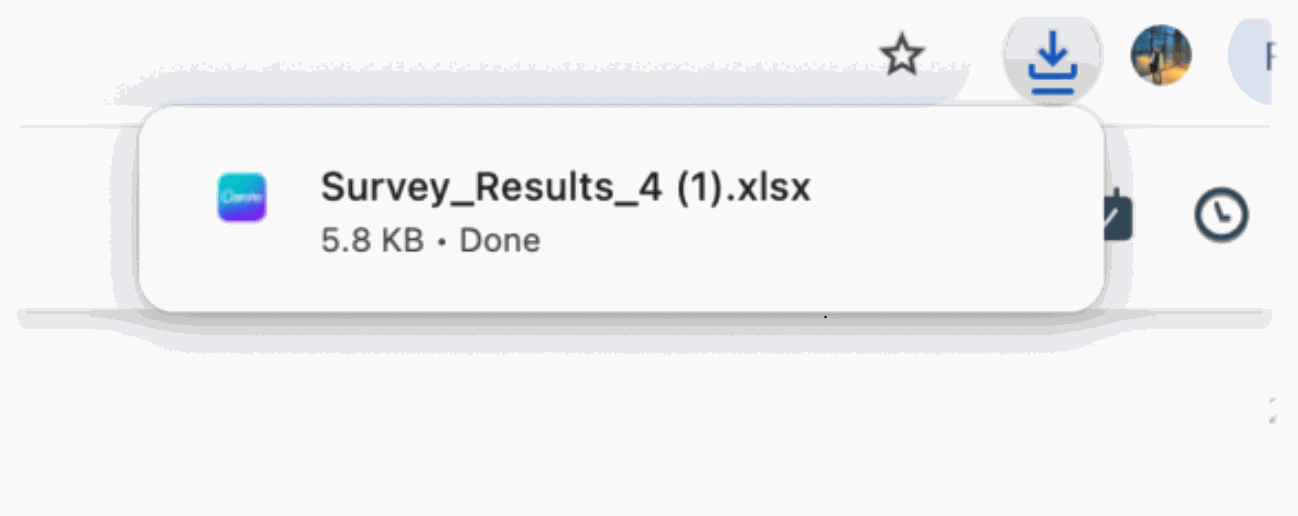
- An Excel file is immediately downloaded to your device.
)%20-%202026-02-12T143040.255.png?access_token=b948e4e8-b172-4c2f-9cab-f9c2f4b0a477)
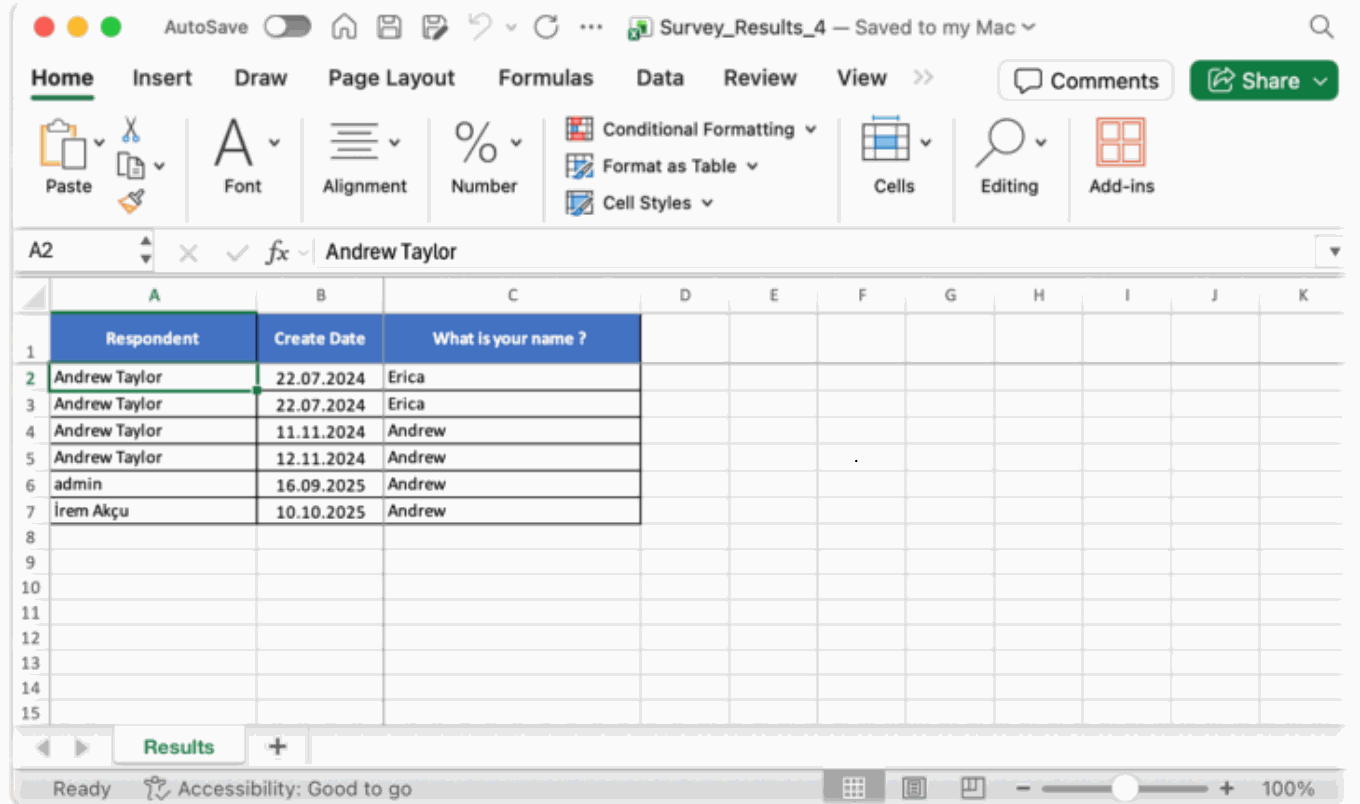
- Open the file to view a structured table where the left column lists all respondents, each additional column represents a survey question, and each row displays the individual answers submitted by each participant.
)%20-%202026-02-12T143214.541.png?access_token=c2cadff7-9aeb-4d9f-b2af-2f25f9b9ff76)